 Sheru Bhai AI
Me & Sheru
Use your photo as the human face reference and stand beside a separate lion character.
Choose this castCreate a Sheru Bhai video from your photo or start with a scene. Explore luxury arrivals, auction stories and birthday surprises.
Choose a scene. Step into the story with Sheru.
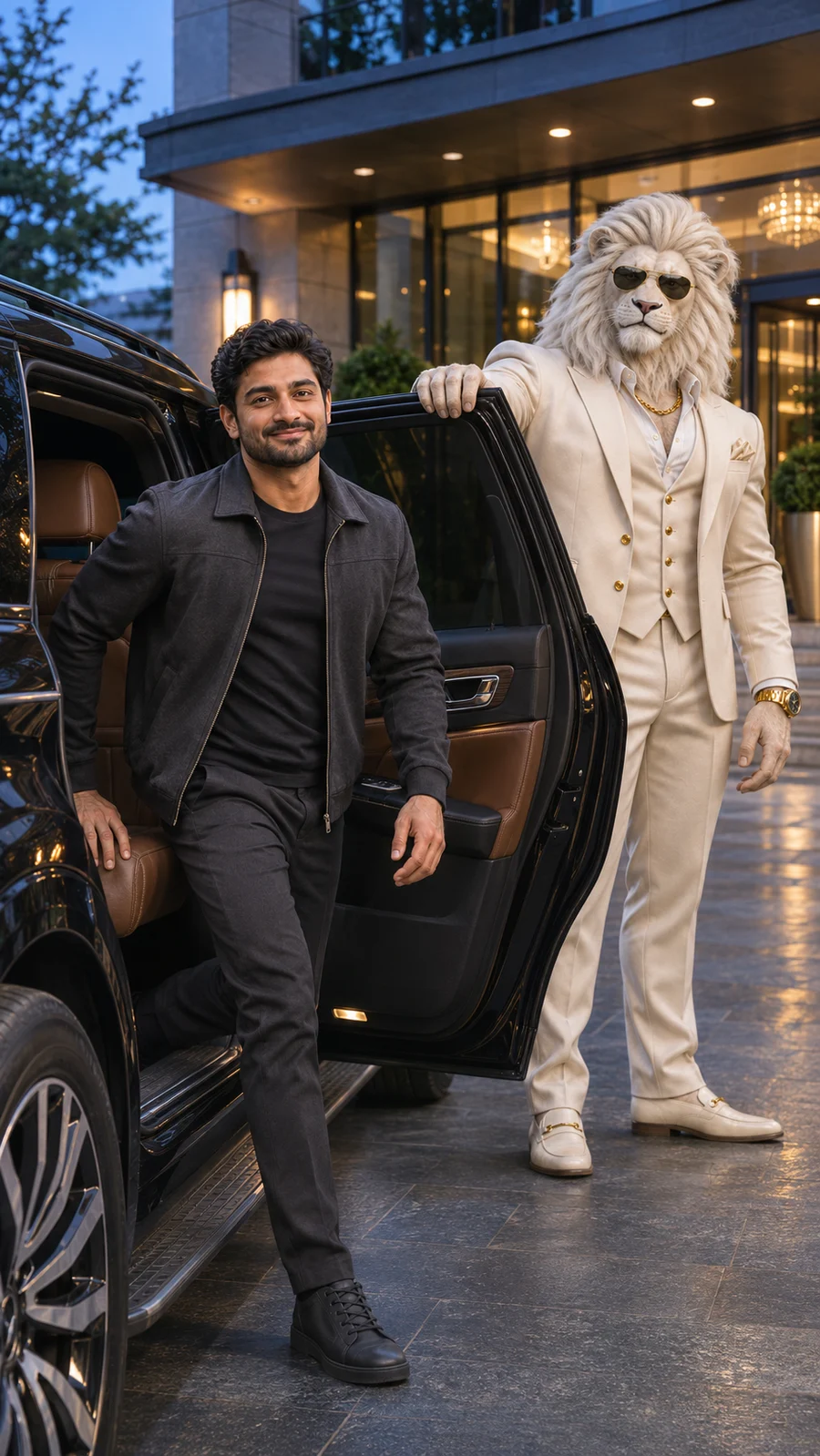
Full scene reference with fictional example cast. Not a generated result.
Requested output ratio: Same as personalized first frame
Me and Sheru
Finish stepping out → Settle by the door → Thank Sheru → Face the camera
Storyboard preview only; this is not a playable video or audio sample.
Scene reference, not a generated result
Use your photo as the human face reference and stand beside a separate lion character.
Choose this castUse your build and pose as a reference for a lion transformation. This changes the face into a lion.
Choose this castCreate a lion portrait or story without uploading a personal photo.
Choose this castEach story has a beginning, an action and a final beat. Keep the action focused for a short clip.
Continue the walk toward the camera, share a brief interaction, then settle into a portrait.
Use a clear face photo for a companion portrait, or a standing pose for a transformation.
Walk together → Brief interaction → Face the camera
Create this storyBegin beside the parked car, finish a small cuff adjustment, then look toward the camera. Keep the car and doors still.
Choose your cast and a standing photo. Keep the parked car visible behind the subjects.
Beside the car → Adjust the cuff → Look to camera
Create this storyKeep the subjects standing beside the throne as the camera moves closer. Finish with a small nod and a calm portrait.
Use a standing pose for a transformation, or choose Only Sheru without a personal photo.
Stand by the throne → Move closer → Nod in greeting
Create this storyContinue from the raised hand: signal a bid, show the rival’s surprised reaction, then lower the hand and finish with a calm nod. No spoken bidding.
Choose the auction item and a bidding gesture. Standard video uses music and visual reactions.
Bid with hand raised → Surprised reaction → Finish with a nod
Create this storyFrom the cabin window, turn toward the camera and lift the same glass in a restrained toast as the camera moves closer.
Choose a standing photo and keep the window, glass and hands visible. The scene stays inside the cabin.
By the cabin window → Turn and toast → Move closer
Create this storyOffer a warm birthday greeting, gesture toward the cake already on the table, then hold a portrait as light confetti falls.
Add the recipient’s name and one short greeting. Keep the cake on the table and hands clear of the frosting.
Birthday greeting → Gesture to the cake → Confetti portrait
Create this storyChoose a story, or use Animate this image on a finished photo in the editor. That photo becomes the first frame.
Keep one main action. Standard videos include instrumental music and effects, without dialogue, voice-over or lip sync.
Choose an aspect ratio and a 1K or 2K first frame. Video output is 720p and 15 seconds. Review the full quote before generating.
Copying prompts and exploring scenes do not spend generation credits. Check the quote for your selected settings before submitting a task.
View pricingIn the editor, select your favorite generated image and choose Animate this image. It becomes the video’s first frame with the same scene and cast. If you change the scene, the editor asks you to release that frame first.
Make a starting photoUse these editable templates as starting points. Replace the example details and review your scene, cast and sound settings before generating.
No personal photo needed. Show the bidding gesture and rival reaction with music; no spoken dialogue.
Change: auction item, bidding gesture and rival’s reaction.
Feature one principal Sheru Bhai lion hero without a user-photo companion. Include one distinct fictional rival.

Sheru is an anthropomorphic white lion in an ivory suit, sunglasses and gold accessories.

An auction portrait with Sheru’s hand already raised, a rival holding a paddle and the auction item visible.

Continue from the raised hand: signal a bid, show the rival’s surprised reaction, then lower the hand and finish with a calm nod. No spoken bidding.

15 seconds, 720p, instrumental music and environmental effects only. No dialogue, singing or speaking mouth movement.

Keep faces, hands and key props visible. No text, logos or watermarks.Choose Only Sheru and music with sound effects. Keep the toast inside the cabin in one continuous shot.
Change: suit, time of day and camera angle.
Feature one principal Sheru Bhai lion hero without a user-photo companion.

Sheru is an anthropomorphic white lion in an ivory suit, sunglasses and gold accessories.

A standing portrait inside a private jet cabin, beside a window, with a glass held near the waist.

From the cabin window, turn toward the camera and lift the same glass in a restrained toast as the camera moves closer.

15 seconds, 720p, instrumental music and environmental effects only. No dialogue, singing or speaking mouth movement.

Keep faces, hands and key props visible. No text, logos or watermarks.Yes. Choose Only Sheru and start from a scene and a description. Other casting choices use your photo as a reference.
Use Animate this image on a generated image in the editor. Review the scene before submitting the video task; changing it requires releasing the first-frame binding.
Standard video includes music and effects. It does not include character dialogue, voice-over or lip sync.
No. A new 2K first frame costs 18 credits and standard video costs 40, for 58 total. Video remains 720p and 15 seconds.
Standard video lasts 15 seconds. Keep the number of actions appropriate for that length.
Check the task status in your history before starting another task. Refreshing a task checks the same request; generating again creates a new request. For a failed task or a result with missing files, keep the task ID and contact support from your account.